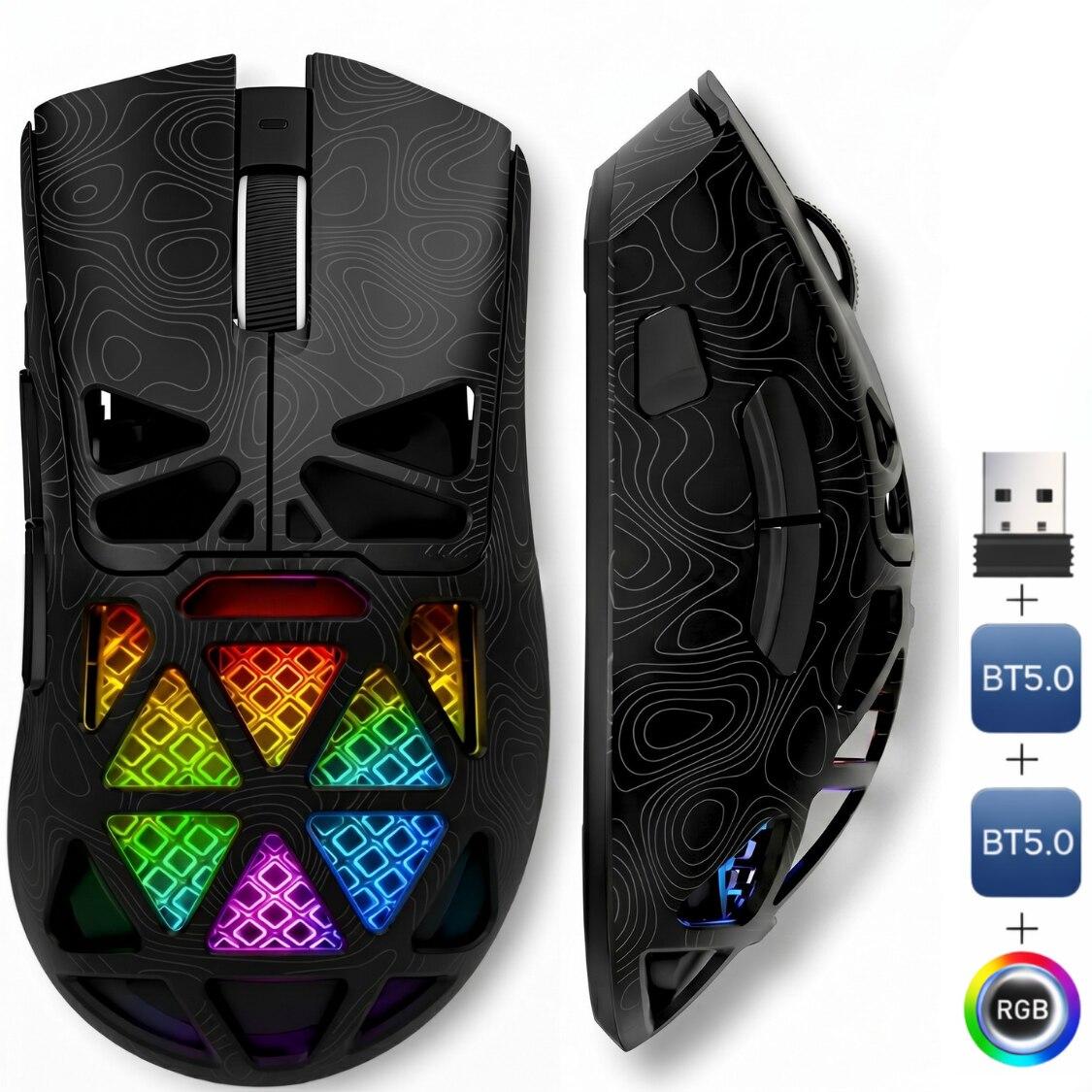
FURYCUBE Wireless Mouse, White
FURYCUBE wireless mouse with rechargeable battery, ergonomic design.
Customize buttons, DPI, macros and lighting. Depending on your system:
Windows — download FuryCube.exe- 1
Download the driver with the button below, then open the WebDriverForMac.pkg file from Downloads and follow the installer (Continue → Install, using your Mac password).
Download the Mac driver (WebDriverForMac.pkg)If macOS says it can't verify the app: System Settings → Privacy & Security → click “Open Anyway”, then resume the installation.
- 2
That's it — the app starts by itself and runs quietly in the background, with no window. It also launches automatically after a restart, so you never need to open it yourself.
- 3
Connect the mouse to your Mac with the cable. On a USB-C-only Mac use a cable with Type-C on both ends.
- 4
Open the configuration in your browser with the button below — Google Chrome is REQUIRED (or Edge/Opera; it does NOT work in Safari or Firefox). If a red warning page appears, click “Advanced” → “Continue” — it's normal and safe.
Open the configuration in your browser - 5
The page detects your mouse automatically through the installed driver: customize buttons, DPI, macros and lighting. Settings are saved directly into the mouse's memory and stay active anywhere you use it.
Need help setting up your product?
We are here for you — anytime, even on weekends or late in the evening. Message us on WhatsApp and we will gladly help with any detail, technical or not. No question is too small!
Quick start
Get your product running in seconds.
Connect via the 2.4G USB receiver, Bluetooth or cable.
Open „Button Customization Software” in the browser (2.4G/cable only).
Read the manual and check the warranty.
Romanian brand 🇷🇴 — made by Romanians for Romanians
We value every customer and we are here for you. It would help us a lot if you left a review on eMAG — that is how we grow a Romanian brand and offer more and better products. Thank you!
Specifications
- Connectivity: 2.4G wireless + Bluetooth + cable (3 modes)
- Optical sensor, up to 22000 DPI
- 6 buttons
- Ultra-light (~65 g)
- RGB lighting
- Programmable buttons via software (Windows: FuryCube.exe · Mac: driver + browser setup — Chrome required)
- Rechargeable battery, USB Type-C charging
- Compatibility: Windows, macOS, Android
Box contents
- 1 x Mouse
- 1 x USB receiver
- 1 x USB-C cable
- 1 x Manual
User manuals
Specifications, connection, button programming, troubleshooting and warranty.
01General Presentation
The FURYCUBE G11 is an ultra-light (65g) gaming mouse with 6 buttons, an optical sensor up to 22000 DPI and three connection modes: 2.4G wireless, Bluetooth and cable. It connects to multiple devices and switches quickly between them. RGB lighting with several effects, USB Type-C rechargeable battery.
02Connection — 2.4G, Bluetooth, cable
The FURYCUBE G11 has 3 connection modes. Select the mode with the switch under the mouse. Below, step by step, each mode:
- 1CABLE MODE (simplest): plug the USB-C cable into the mouse and the other end into the computer. Works instantly, no setup. Note: to customize the buttons, the mouse MUST be connected by cable.
- 22.4G MODE (wireless, recommended for gaming): 1) Take out the small USB receiver (in the slot under the mouse). 2) Plug it into a USB port. 3) Set the switch under the mouse to «2.4G» and turn the mouse on. On power-up the indicator blinks red for 3 seconds and connects automatically.
- 3BLUETOOTH MODE (laptop / phone / tablet): 1) Set the switch to «BT». 2) Hold Left-click + Right-click + Scroll wheel TOGETHER for 3 seconds — the indicator blinks (pairing mode). 3) On your phone/PC open Bluetooth settings and pick «FURYCUBE / G11». 4) Done.
- 4SWITCH BETWEEN 2 BLUETOOTH DEVICES: hold the DPI button for 3 seconds to switch from Bluetooth 1 to Bluetooth 2.
- Intrare în modul asociere (pairing) — ca la W10
- Hold Left-click + Right-click + Scroll wheel together for 3 seconds. The indicator starts blinking = you're in pairing; then select the device.
- Buton DPI / Bluetooth
- Hold 3s to switch between Bluetooth 1 and Bluetooth 2
- Stânga + Mijloc (rotiță)
- 2.4G mode — hold 3s to enter pairing
- Stânga + Mijloc + Dreapta
- Bluetooth mode — hold 3s to pair with a new device
- Dreapta + buton Înainte
- Change lighting effect (cycle: single, neon, 7-color, mixed, marquee, off)
For Bluetooth: after entering pairing (indicator blinks), open Bluetooth on your phone/PC and pick "FURYCUBE / G11". If you change the computer or adapter, pair again.
03Button Customization Software
The FURYCUBE G11 mouse buttons can be customized (button remap, macros, DPI levels, lighting effects) in two ways, depending on your operating system:
🪟 Windows: download and run the FuryCube.exe app — it's the native Windows application. Download: https://support-netstat.ro/software/FuryCube.exe . Open it and configure the mouse directly.
🍎 macOS: use the web version at https://www.bk-gmice.com/#Furycube/factoryG11. When it opens, the browser may show a red warning page («not secure») — this is normal and safe: click «Advanced» → «Continue to site», then click «Connect» and select the mouse.
04DPI & Lighting
The DPI button (short press) cycles the sensitivity levels, up to 22000 DPI. Lighting effects change with Right + Forward button and can be fine-tuned in the dedicated software.
05Specifications
- Sensor / DPI
- optic, până la 22000 DPI
- Buttons
- 6 butoane
- Weight
- ~65 g (ultra-ușor)
- Connectivity
- 2.4G + Bluetooth (×2) + cablu
- Lighting
- RGB, mai multe efecte
- Battery
- 400mAh, reîncărcabilă USB-C
- 2.4G range
- ~10 m
- Cable
- USB Type-C
- Compatibility
- Windows, macOS, Android
06What's in the Box
- 1× FURYCUBE G11 mouse (3 modes)
- 1× 2.4G USB receiver
- 1× USB Type-C cable
- 1× User manual
07FAQ & Troubleshooting
- Nu merge pe Bluetooth
- Use a quality Bluetooth adapter; make sure Bluetooth is on; delete the device from the list and re-pair. After changing PC/adapter, pair again.
- Nu merge pe 2.4G
- Switch to 2.4G mode — the red indicator lights for 3 seconds. Check the USB receiver.
- Cursor imprecis / sacadat
- Use it within 10 m and avoid glossy/transparent surfaces; a mousepad is ideal.
- Cum îl încarc?
- Via the included USB Type-C cable; you can use the mouse while charging.
08Where to find Bluetooth settings on a computer / phone
If this is your first time connecting something over Bluetooth, here is exactly where to click on each system. Do this AFTER you have put the product into pairing mode (the indicator is blinking).
- Windows 11
- Start → Settings → Bluetooth & devices → "Add device" → choose "Bluetooth" → click the product name in the list.
- Windows 10
- Start → Settings → Devices → Bluetooth & other devices → "Add Bluetooth or other device" → "Bluetooth" → click the product name.
- macOS (MacBook, iMac)
- Apple menu () top-left → System Settings → Bluetooth → click "Connect" next to the product.
- Android (telefon / tabletă)
- Settings → Connected devices → "Pair new device" → tap the product name. (On Samsung: Settings → Connections → Bluetooth.)
- iPhone / iPad
- Settings → Bluetooth → make sure it is on → tap the product name under "Other devices".
If the product does not show up: 1) check that the indicator really is blinking (if not, repeat the pairing combination); 2) keep the product under 1 metre away; 3) turn Bluetooth off and on again on the computer/phone; 4) turn off other nearby Bluetooth devices trying to connect at the same time.
09Technical Words, in Plain Language
If you came across a word in this manual that you do not know, here it is explained simply. You do not need to memorise them — just look here when you need to.
- Receptor (dongle) 2.4G
- The small piece of plastic that goes into the computer's USB port. It talks wirelessly to the product. Without it the 2.4G mode does not work — but the product still works over Bluetooth, if it has it.
- 2.4G
- A wireless mode that needs the receiver from the box. Upside: works instantly, no setup, and is the most stable. Downside: it uses a USB port and you need the receiver.
- Bluetooth
- A wireless mode that does NOT need a receiver — it connects straight to a laptop, phone or tablet. The first time it must be "paired"; after that it reconnects on its own.
- Asociere (pairing)
- The one-time introduction between the product and the device. The product makes itself "visible" (the indicator blinks), you pick it from the Bluetooth list, and from then on they know each other.
- USB-C (Type-C)
- The small oval plug that goes in either way up — the same as on modern phones. USB-A is the classic rectangular plug.
- Stand-by (adormire)
- After a few minutes of no use the product "falls asleep" so it does not drain the battery. It wakes on the first press or movement — that is why the first action is sometimes not registered. It is not a fault.
- DPI
- Cursor speed. Low DPI = the cursor moves slowly and precisely (good for drawing and photo editing). High DPI = the cursor flies across the screen (good for large or dual monitors).
- Senzor optic
- The "eye" under the mouse that reads the surface to know how far you moved. That is why it does not work well on glass or glossy tops — it has nothing to read.
- Polling rate (Hz)
- How many times per second the mouse tells the computer where it is. Higher = faster response. It matters in games; at the office you will not feel the difference.
- Click silențios
- The press feels normal but the sound is far quieter than on an ordinary mouse — a dull tick, not a sharp click. It does not mean completely silent.
10Safety — Read Once
- Do not take the product apart or try to repair it yourself — you void the warranty and you could get hurt.
- Keep it away from water, moisture and extreme temperatures (direct sun in a car, radiator, oven).
- Do not leave it within reach of very small children: small parts (the USB receiver, caps) can be swallowed.
- Use it only with the accessories from the box or good-quality equivalents.
- The battery is a built-in Li-Po. Do not pierce it, burn it or submerge it in water.
- Charge only with an ordinary phone cable and charger (5V). Do not use high-power or improvised chargers.
- If the product swells, gets very hot while charging or smells odd, stop charging immediately and contact us.
- Products with batteries must not go in household waste — take them to a WEEE collection point (most large stores have one).
11Still not working? Write to us — we will help
If you have tried the steps in this manual and it still does not work, do not force it and do not take anything apart. Write to us and we will sort it out together — no question is too simple and nobody is judging you.
The fastest answer comes over WhatsApp, at +40 720 697 932. We reply in the evenings and at weekends too.
- 1Write to us on WhatsApp at +40 720 697 932, or use the form on support-netstat.ro → Contact.
- 2Tell us which product you have — the easiest is the code on the box or the exact name from your order.
- 3Describe briefly what happens ("it connects but does not type", "I cannot find it in the Bluetooth list", "it does not turn on at all").
- 4Tell us what you have already tried from the manual — that way we will not ask you to repeat the same steps.
- 5If you can, send a photo or a short video. We often solve it straight away just by looking.
On support-netstat.ro you will also find: the manuals as PDFs in 4 languages, the warranty certificate (you generate it yourself in minutes on the "Warranty certificate" page) and the return request form. The Troubleshooting section with the most common problems is there too.
12Warranty & Support
The product is covered by warranty according to applicable law. For any question, fault or return, reach us anytime at support-netstat.ro — with contact details (e-mail, phone, WhatsApp), manuals, return conditions and warranty certificates. We reply fast and gladly.
PDF+−
Why buy from us
First setup — quick
- 1Turn the device on (ON/OFF switch).
- 2Connect via 2.4G (USB receiver) or pair via Bluetooth.
- 3Done — it works immediately. Charge via USB-C when needed.
Exact steps (pairing, key combos) are in the manual below.
What's in the box
- 1 x Mouse
- 1 x USB receiver
- 1 x USB-C cable
- 1 x Manual
Terms in plain words
Mouse sensitivity: higher DPI = the cursor moves more for the same hand movement. Adjust it with the DPI button.
How many times per second the device reports position/press (Hz). Higher = faster response, useful in gaming.
Already have the product?
Your feedback means a lot to a Romanian brand. It takes 30 seconds and helps us a lot.
Leave feedback on eMAGOther colors / variants
What customers say
The gaming mouse is excellent, and customizing the buttons right in the browser is super simple. Fast support on WhatsApp.
I received the warranty certificate by email within minutes. Everything clear and professional.
The manuals in 4 languages are very useful. The mechanical keyboard looks and sounds perfect.
Good products at a fair price. I would like more colors available, but the support is impeccable.
Frequently asked questions
What warranty do the products have?
24 months commercial warranty + 24 months legal conformity warranty (per Romanian OG 140/2021).
How do I get the warranty certificate?
Fill in the form on the «Warranty certificate» page, select your product and enter the order details — you receive the PDF certificate by email.
How do I return a product?
Submit an online return request on the «Return request» page. We reply within 2 business days.
How do I customize the mouse buttons?
On the mouse page (W10/W13) open «Button Customization Software» right in the browser (Chrome/Edge). Important: it works only via the 2.4G USB receiver or cable — NOT over Bluetooth, for security reasons.
Where do I download the manuals?
From the «Manuals» page or directly on each product page. Manuals are free, in PDF, in 4 languages.
In which languages do you offer support?
Romanian, English, Hungarian and Bulgarian. You can reach us by email, phone or WhatsApp.
After purchase
Similar products